Who is actually connected to your Wi-Fi?
Your router already keeps the list. Opening it takes two minutes — reading it is the part nobody explains.
The thought arrives when the internet slows down, or sometimes for no reason at all on a quiet evening. Who is on my Wi-Fi right now?
You don’t need an app to find out, and you don’t need to understand networking. Your router has been keeping the list the whole time, and opening it takes about two minutes. The problem is what happens next: most people open the list, find fifteen devices where they expected five, and see names like ESP_A4F1C2.
This is about opening the list — and more importantly, about reading it.
1. Open your router’s page
Type your router’s address into a browser. It is almost always one of these three.
| Address | Common on |
|---|---|
192.168.0.1 |
ipTIME and most Korean-market routers |
192.168.1.1 |
TP-Link, ASUS, Linksys |
10.0.0.1 |
Some ISP-supplied boxes |
If none of them load, look up your default gateway instead. That address is your router.
- Windows — run
ipconfig, read the “Default Gateway” line - macOS — run
netstat -nr | grep default - Phone — Wi-Fi settings, tap the connected network, look for “Router”
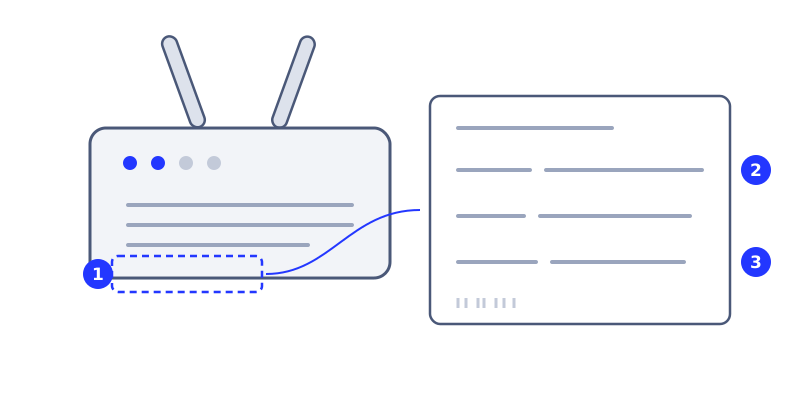
① The sticker is usually on the bottom, sometimes on the side or back.
② The admin address is printed there — an IP like 192.168.0.1, or a http:// address.
③ The default passwords. Note that the admin password and the Wi-Fi password are often two different things.
If you have never changed the login, it is on that sticker. And that is the most important signal in this whole article — if you are still using the printed default, changing it matters more than anything the device list will tell you. More on that below.
2. Find the device list
The menu name depends on the manufacturer. Look for one of these:
- Connected Devices / Attached Devices / Device Map
- DHCP Client List
- Client List / Network Map
The word to look for is DHCP. That is the record of every internal address your router has handed out, which is the same thing as the list of devices on your network.
3. Why the list is longer than you expected
This is where most people get alarmed. Three people live here, and the list shows fifteen devices. That is normal.
A single person typically accounts for several lines:
- Phone, laptop, tablet
- TV, set-top box, streaming stick
- Smart speaker, robot vacuum, air purifier
- Smart plugs and bulbs — each one is its own line
If you installed eight smart bulbs, the list grows by eight. The count on its own is not a warning sign.
4. When the name looks like a serial number
You will see entries like ESP_A4F1C2, azurewave-1f2e, or android-8c2d91a4. That is the name the device reports about itself, and manufacturers rarely put any thought into it.
The way to identify it is the first six characters of the MAC address. In an address like A4:F1:C2:..., that leading portion is the manufacturer’s registered prefix (the OUI). Search it and you will usually find the company.
- Anything starting with
ESP_is almost certainly a cheap IoT device built on an ESP chip — smart plugs, bulbs, and sensors are mostly in this family - If the manufacturer comes back as Apple or Samsung, it is probably something of yours
The most reliable method is cruder and completely dependable: unplug the device you suspect and refresh the list. The line that disappears is that device.
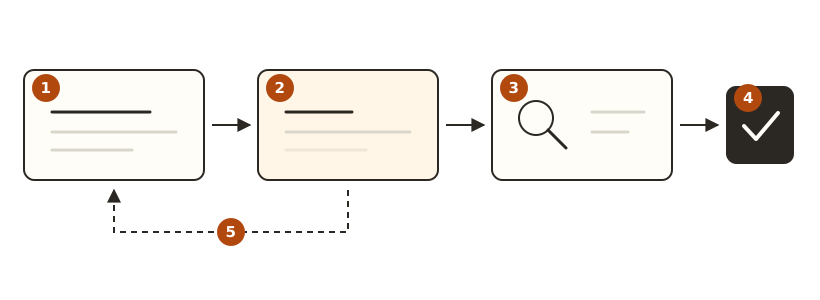
① Find the odd name in the list. ② Look up the manufacturer from the first six MAC characters. ③ If that fails, unplug the device you suspect. ④ If the line disappears, that was it. ⑤ If it doesn’t, move to the next candidate.
Expect this to take tens of seconds rather than an instant. Routers do not refresh the list immediately. Don’t refresh once and conclude you were wrong. Wait a minute, then check again.
5. If something is still unaccounted for
Before assuming an intruder, work through the ordinary explanations. Most unknown devices turn out to be one of these.
- A guest’s device — anyone you gave the password to is still on the list
- Something you forgot — an old tablet in a drawer, a previous phone, both reconnecting automatically
- A randomised MAC address — recent iPhones and Android phones invent a different MAC for each network as a privacy feature. This means your own phone can appear twice under unfamiliar names
If all three are ruled out and an unknown device keeps reappearing, then it is worth acting on.
6. The fix is a new password, not a block button
Most routers can block a specific device. That is first aid, not treatment.
- MAC addresses can be changed in software. Block one and it can return under a different address
- More to the point, blocking does nothing about how it got in — which means someone has your password
The order that actually works:
- Change the Wi-Fi password. Every device will need to reconnect, so pick a time when that is convenient
- Set encryption to WPA3, or WPA2 if WPA3 isn’t available. If it is currently set to WEP or Open, change it today
- Change the router’s admin password. This is a separate thing from the Wi-Fi password, and an enormous number of households are still using the one on the sticker
- Turn on the guest network. Put visitors and IoT devices there and you never have to hand out your main password again
7. One look is not enough
The device list is a snapshot of this moment. Devices that are powered off don’t appear, and anything that connected briefly and left is already gone from it.
So rather than checking once and feeling reassured, read your router’s logs alongside it. Most routers keep a record of connections and disconnections, and that record includes devices that are switched off right now. Reading those logs is its own article.
In short
| Situation | What to do |
|---|---|
| Far more devices than expected | Normal. Smart devices take one line each |
| Names look like serial numbers | Look up the first six MAC characters, or unplug and refresh |
| Your phone appears twice | Randomised MAC. Working as intended |
| A genuinely unknown device | Not a block — new password, WPA3, new admin password |
| Still on the sticker password | This matters more than the device list |