How to read your router logs — the devices that are switched off right now
The device list is a photograph of this moment. The logs hold what connected at 3am and left, and every failed attempt at your password.
Once you have checked the list of connected devices, one thing nags at you. That list shows this moment only. A device that is powered off doesn’t appear, and neither does anything that connected at 3am and left again.
The logs fill that gap. They are also considerably less friendly to read. This article covers what the logs can and cannot tell you, and how to interpret an unfamiliar line when you meet one.
Where the logs are
In your router’s admin page, look for one of these names.
- System Log / Event Log
- Administration → Logs
- Status → Logs
On some models logging is switched off by default. If the screen is empty, nothing is broken. The router simply never started recording. Turn it on, leave it a few days, and it will fill.
What actually gets recorded
The format differs by manufacturer, but there are broadly four kinds of entry.
| Kind | What it tells you |
|---|---|
| Connect / disconnect | Which device joined or left, and when |
| Authentication failure | Attempts made with the wrong password |
| DHCP assignment | Which internal address went to which device |
| Admin login | Someone opening the router’s own settings page |
Two of those — authentication failures and admin logins — are information the device list can never show you. The list only ever shows connections that succeeded.
Reading a single line
A log line usually looks something like this.
Aug 29 03:14:22 wireless associated A4:F1:C2:8D:22:1E (-58 dBm)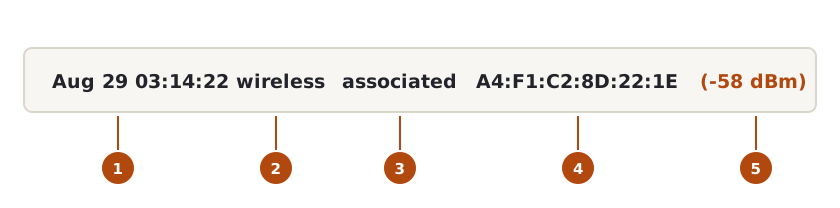
① The time. ② The category. ③ What happened. ④ The MAC address of the device. ⑤ The signal strength.
From the left: time, category, event, MAC address, signal strength. The wording varies, but those five pieces are in most of them.
associated/connected— it joineddisassociated/deauth— it leftauth failure/invalid key— the password was wrong- the
dBmfigure in brackets — signal strength. Around -50 is close by; -80 or lower is far away or through walls
Working out which device a MAC address belongs to is covered in the previous article. Look up the manufacturer from the first six characters, or unplug the device you suspect and watch for a disconnect line.
What the signal strength gives you
The dBm value is more useful than it looks, because it offers a rough answer to a question the device list can’t touch: is this thing inside the house, or is it being picked up from outside?
| Value | Roughly where |
|---|---|
| -30 to -50 | Same room, very close |
| -50 to -67 | Same floor, a wall or two |
| -67 to -80 | A different floor, or several walls |
| Below -80 | A long way off, or outside the building |
If an unidentified device keeps appearing at around -85, that could be a neighbour’s device latching on by mistake, or something genuinely attempting to connect from outside. The figure swings a great deal with wall material and interference, though, so treat it as a hint, not evidence.
A few authentication failures are normal
This is where people tend to get a fright. Seeing auth failure a few times a day is entirely ordinary.
- A device with the password saved waking up and retrying
- A device still holding an old password after you changed it
- A neighbour’s device trying to join a network with a similar name
What matters is the pattern. A handful of lines scattered across a day is everyday noise. Dozens of lines within a few minutes, from MAC addresses that keep changing, is a different picture — that pattern suggests something automated. The answer there is a new password and WPA3.
Do look at the admin login entries
This is the most important category and the one nobody checks. An admin login recorded at a time when you were not logging in means something other than your Wi-Fi password has been given away. It means the router itself was opened.
The order of response is different in that case.
- Change the router’s admin password immediately
- Turn off remote management (sometimes called WAN access) if it is enabled
- Update the firmware
- Then change the Wi-Fi password
Remote management is the feature that lets the router’s settings be reached from outside your home. If you don’t use it, it is safer switched off.
Three limits worth knowing
Treat the logs as complete and you will reach wrong conclusions.
① They are not kept for long. Most home routers hold logs in memory, and a reboot wipes them. Plenty of models only keep a few days in any case. If you find a line that matters, screenshot it.
② The timestamps may be wrong. If the router’s clock never synchronised with an internet time source, the times are fiction. Check the time and time zone settings before you start reading.
③ Randomised MAC addresses split one device across many lines. Recent phones use a different MAC on every network, so an unfamiliar address in the log may well be your own handset.
In short
| What you want to see | Where it lives |
|---|---|
| Devices connected right now | The device list |
| Something that connected briefly and left | Logs (connect / disconnect) |
| Failed password attempts | Logs (authentication failure) |
| Someone opening the router’s settings | Logs (admin login) |
| What happened last week | Usually nowhere — a reboot clears it |
The reason to read your logs once is not for the day something goes wrong. It is so that you know what normal looks like in your house. You have to know that three failed attempts a day is your baseline before thirty of them can mean anything.