UPnP — the setting that lets your devices open their own doors
It is on by default and almost nobody looks at it. How to see what is currently open, and what gets awkward if you turn it off.
By default, your router blocks connections coming in from outside. Things can go out from your house, but not the other way. That is the single most important job a router does, and the reason most people never have to think about it.
There is a setting, though, that lets devices punch a hole through that wall by themselves. It is called UPnP, and it usually ships switched on.
What it does
A games console playing online sometimes needs to accept a connection from outside. Normally a person has to go into the router and register it by hand: “anything arriving on this number goes to this device.” That job is called port forwarding.
UPnP lets the device ask directly. The console tells the router “open a hole for me” and the router opens it. Nobody is involved.
That is why consoles, video calls and some smart home devices just work the moment you plug them in. As a convenience feature it is well made.
The problem is that it doesn’t ask who is asking
The router doesn’t check whether the request came from a games console or something else. If it is inside the house, it gets opened.
Which makes all of this possible:
- A device opens something wider than it needed and never closes it
- A hole opened by a device you stopped using years ago is still there
- If a device in the house is compromised, that code can open a door facing outward by itself
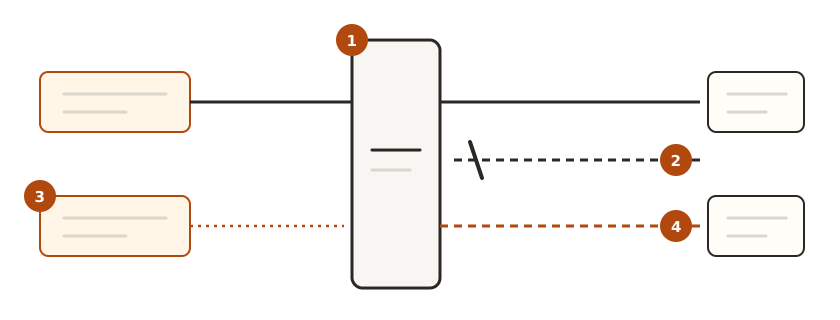
① The router is the wall. Things go out freely. ② What comes in from outside is refused. ③ A device inside asks for a hole. ④ The router opens it, and now that one way in is live.
The last one is the real character of this feature. A router’s defence is against “outside coming in” — and UPnP is a way for the inside to switch that defence off.
Go and look at what is open
The one thing to actually do here is this. Before turning anything off, look at the current list.
In the admin page, find one of these.
- Advanced settings → UPnP
- Network → Port forwarding
- NAT → Port forwarding list
The list usually shows which device opened which number. Two things to look for.
- Is there a device you don’t recognise? Identifying it works the same way as with the device list
- Are there entries for devices you no longer use? Something you sold, a console from years ago
If it is empty, no device has asked for anything, and that is good news.
What gets awkward if you turn it off
Off is safer, but it isn’t free.
- Games consoles may connect worse. The console reports a worse NAT type, matchmaking takes longer, and voice chat drops
- Some video call and remote desktop apps fail to connect
- Reaching a camera or NAS at home from outside may stop working
In most households nothing happens at all. Modern services are generally built to work without accepting inbound connections. If there is a console in the house, though, you may notice.
The order
- Look at the list first. Turn it off without knowing what was open and you cannot trace back what broke
- If there is an entry you don’t recognise, work out which device it is
- Turn UPnP off and live with it for a few days
- If something breaks, don’t turn UPnP back on — port forward that one device by hand. Undo everything for the sake of one and you are back at the start
Manual entries are tedious, but you do it once, and the difference is that you know what is open.
One more thing on the same screen
While you are in there, there is one more worth checking: remote management (sometimes WAN access). It lets the router’s settings page be reached from outside, and if you don’t use it, it is safer off.
If you ever find an admin login in your router’s logs at a time you weren’t logging in, this is the first setting to look at.
In short
| Question | Answer |
|---|---|
| What is UPnP | A feature letting devices open their own inbound holes |
| Default | Usually on |
| What’s risky about it | It doesn’t check what is asking |
| First thing to do | Not turn it off — look at what is open |
| What breaks if I turn it off | Mainly consoles. Most houses notice nothing |
| If something breaks | Don’t re-enable it; forward that one device by hand |
| What else to check | Whether remote management is off |
If you had to name the router setting doing the most work while being looked at the least, this would be it. Whether you turn it off depends on your circumstances — but what is open right now is worth one look.