What your iPhone sends — and how to turn the tracking off
Switching off "Allow Apps to Request to Track" leaves the advertising identifier running. They are two different things, on two different screens.
Once the ACR on your TV is off, what is left is the thing in your hand. Your phone knows far more than the television does, and it is with you all day.
The privacy settings on an iPhone are, on the whole, well built. The trouble is that similarly named items sit on different screens, which makes it easy to switch one off and assume you are done.
There is more than one switch
This is where the common misunderstanding starts. People turn off “Allow Apps to Request to Track” and consider the job finished — but that is one of three.
| What | Who it stops | Where it lives |
|---|---|---|
| App tracking | Other companies following you across apps and the web | Privacy & Security → Tracking |
| Apple Advertising | Apple itself tailoring ads from your usage | Privacy & Security → Apple Advertising |
| Analytics sharing | Usage records going to Apple | Privacy & Security → Analytics & Improvements |
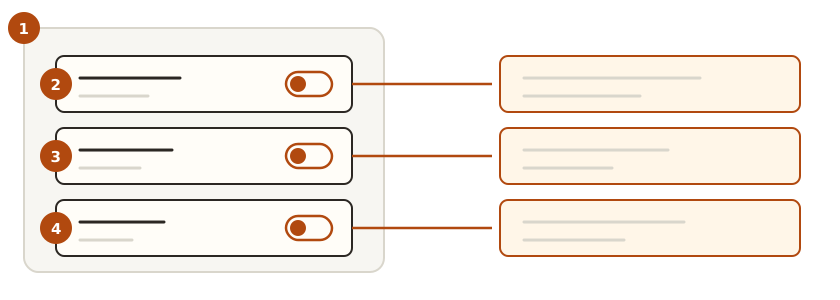
① All three live in Settings, on separate screens. ② App tracking stops other companies. ③ Apple Advertising stops Apple. ④ Analytics stops the usage reports.
They are switches aimed at different companies, so turning one off leaves the others running. Work through them in order.
1. App tracking — the one that matters most
Settings → Privacy & Security → Tracking
Here you will find “Allow Apps to Request to Track”. Turn it off and apps can no longer show you the permission prompt at all, and any app you already granted is revoked.
Below that on the same screen is a list of apps. It is worth a look. There may be one you tapped “Allow” on without thinking about it.
What changes is that an app can no longer join your device to your activity in other apps and sites. Ads don’t disappear; they become less targeted.
2. Apple Advertising — a separate switch
Settings → Privacy & Security → Apple Advertising
“Personalised Ads” here applies to Apple’s own services — the App Store, Apple News. Turning off the first switch leaves this one on.
On some models the same screen lets you view the ad information Apple holds. It shows which categories you have been sorted into, and opening it once makes it obvious what the setting actually does.
3. Analytics sharing
Settings → Privacy & Security → Analytics & Improvements
Switching off “Share iPhone Analytics” stops usage and diagnostic records going to Apple. On the same screen there is “Share iCloud Analytics”, and depending on the model, further “improvement” items. Turn them all off and the phone works exactly as before.
4. Safari — the browser is its own place
Settings → Safari
- Prevent Cross-Site Tracking — leave it on
- Hide IP Address — hides your address from trackers
- Privacy Preserving Ad Measurement — you can switch this off
If you use a browser other than Safari, its settings live inside that app. What you turned off in the iPhone’s Settings does not reach it.
5. Location — the most sensitive item
Settings → Privacy & Security → Location Services
Go down the app list and find anything set to “Always”. Delivery and map apps often sit there from the day they were installed. For most of them, “While Using the App” is enough.
At the bottom of the same screen, System Services holds several more. One of them, Significant Locations, is a record of the places you go regularly. It stays encrypted on the device, but looking at the list once tells you how detailed it is.
What gets worse when you turn these off
Honestly, almost nothing. That is what separates this from the TV and router settings.
- Ads are less targeted. The slots remain
- App Store recommendations are less personalised
- Moving location from “Always” can delay some automatic features, like arrival notifications
Nothing stops working. Which makes this worth doing before anything else on the list.
Where the settings stop
Everything above is asking to not be sent. What actually leaves the device can only be seen on the network, and that approach covers the whole house at once.
And no setting hides an account you are logged into. Sign in and that service knows who you are — the same limit covered in the VPN article.
In short
| Question | Answer |
|---|---|
| Is app tracking the only one | No. Three of them, on different screens |
| Which does the most | Turning off app tracking. It revokes existing grants too |
| Is Apple Advertising separate | Yes. It covers Apple’s own services |
| What about browsers | Safari is in Settings; others are inside the app |
| What to look for in Location | Anything on “Always”, then System Services |
| Does anything break | Almost nothing. Ads are just less targeted |
| Is this enough | It is a request. For certainty, work at the network level |
When you set up a new iPhone, not pressing “Next” quickly through the wizard handles most of this. One pass then is far easier than digging through five screens later.