Blocking trackers for the whole house — what DNS filtering can and cannot do
One setting on your router instead of hunting through twenty devices. The catch is what stops working alongside it.
Once you have turned off your TV’s ACR, the next thought follows on its own. What about everything else?
The smart plugs, the robot vacuum, the air purifier, the games on a child’s tablet. Some have a settings screen, some don’t, and the ones that do all call it something different. In a house with twenty connected devices, going through twenty menus is not a realistic plan.
There is a way to handle it in one place. It is not free, though: it comes with side effects, so knowing what breaks alongside it is the right place to start.
1. Why one place works at all
Before a device can send anything to its manufacturer, it has to ask a question first: “where is that company’s server?” It is the same as looking up a number before making a call. The thing that answers that question is DNS.
That is the pressure point. What the device sends is encrypted and you cannot read it — but the question about where to send it passes through your house. Answer that question with “no such address” and the device never finds anywhere to send anything.
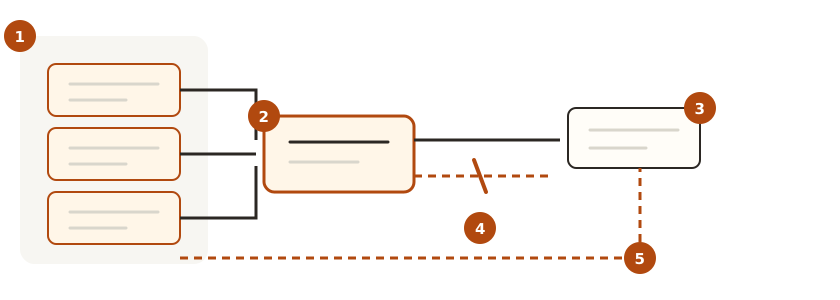
① Every device asks the same question. ② One place answers it. ③ An ordinary address comes back. ④ A tracking address does not. ⑤ A device with its own DNS baked in goes around the whole thing.
Because you are changing the phone book the whole house shares rather than each device, one setting covers everything that connects to your router. It reaches devices that have no settings screen at all, and that is where the real value is.
2. Two ways to do it
One involves buying hardware. The other doesn’t.
| A DNS service (NextDNS and similar) | A blocker in your house (Pi-hole and similar) | |
|---|---|---|
| What you need | Nothing but router settings | A device that stays powered on |
| Setup | Type in two addresses | Installation and configuration |
| Away from home | Follows the device if you configure it there | Home network only |
| Cost | Free tier, then paid | Software is free, hardware is not |
| When it breaks | The provider handles it | You handle it |
| Where the record lives | With the provider | In your house |
For most households the first one is the right answer. Nothing to buy, and if it goes wrong you put the router setting back and it is over.
The second earns its keep when you would rather the record of those questions never left your house. Be aware that if that machine goes down, the whole house’s internet slows or stops, so only take it on if you are willing to maintain it.
3. Where the setting goes
One place: your router. In the admin page, look for one of these.
- Internet settings → DNS server
- Network → DHCP server settings, the DNS field inside it
You can also set it per device, but then you lose the entire reason for doing it this way. Put it on the router and anything you bring home is covered the moment you switch it on.
4. Some devices leak anyway
This is where people get caught out. You put the setting in and some devices keep talking regardless.
Some devices carry a DNS address baked in. They ignore the phone book your router hands out and ask the one they already know. Smart TVs and some streaming devices are known to behave this way.
Browsers go their own way too. Modern browsers can encrypt their own DNS questions and send them independently, which walks straight past your house setting. Turning off the “secure DNS” option in Chrome or Firefox settings puts them back on your network’s.
Some routers can force those requests back through (DNS redirection), but it is more common for consumer models not to. So treat this as a way to reduce most of it, not to stop all of it.
5. What gets blocked and what doesn’t
The same accounting as in the VPN article is needed here. Every tool covers a different stretch.
Blocked
- Usage reports devices send home — including devices with no settings screen
- Tracking modules built into apps, which narrows the route where you delete an app but the profile stays
- Advertising and tracking domains that web pages call
Not blocked
- Accounts you log into. Sign in and that service knows exactly who you are
- Anything served from the same domain. If a service sends its tracking from its own address, you cannot pick that out — you would have to block the whole service, and then the service doesn’t work
- Browser fingerprinting. Identifying you by screen size, fonts and time zone has nothing to do with DNS
- Cookies already stored
6. Know the side effects first
This is the part the articles recommending this approach tend to skip. Set the block list wide and working features go down with the trackers.
- App stores and some streaming apps won’t open
- Smart doorbells and washing machines fail to pair with their apps
- Payments in shopping apps stall halfway
- Links in email don’t open, when they route through a tracking redirect
What makes it worse is that the cause is hard to guess. When somebody in the house says “this app is broken” a few days later, there is nothing to tell you whether it is the filtering or the app.
So if other people share the house, prepare two things in advance. Write down your original DNS settings so you can put them back, and learn how to make an exception for one device.
7. The order to do it in
Start wide and you will never learn what caused what. Go the other way.
- Put one DNS on the router and start with its default block list. Defaults are usually conservative, so side effects are few
- Leave it alone for a week. The point of that week is not blocking — it is learning what normal looks like
- If nothing has broken, widen the list one step
- When something does break, don’t narrow the list — make an exception for that device. Undo everything for the sake of one and you are back at the start
If you want devices separated outright, a guest network works alongside this. Put the TV and the IoT devices there and they are separated from the rest of the house as well.
In short
| Question | Answer |
|---|---|
| I turned the settings off on each device — is there more | Yes. The devices without a settings screen are still there |
| Where does it go | One place, on the router. It covers everything that connects |
| Do I need to buy anything | No. A DNS service alone will do |
| Does it block everything | No. Devices with baked-in DNS and browsers leak |
| Do ads disappear | Some go, but the aim here is tracking |
| Are there side effects | Yes. App stores, streaming and payments can go down with it |
| Can I undo it | Yes. Put the router’s DNS back and it is over |
The value here is not completeness — it is reach. This is not about shutting one device down properly; it is about reducing twenty at once, roughly. The more devices arrive in your house without so much as a settings screen, the more that difference matters.